In a world where mobility is crucial, maintaining an AD joined computer can change from an asset to a burden. Modern users are constantly on the move. They do not rely on applications that need a constant remote connection. These users often manage a device tethered to an on-premise infrastructure. Instead of simplifying their daily routine, it complicates it.
Imagine a mobile professional working away from the office. Their work does not depend on remote connections. It still demands high standards of security and management. In this scenario, traditional AD was once a cornerstone of IT management. Still, it becomes a cumbersome weight. It forces IT departments to handle continuous and complex maintenance of systems. These systems otherwise be avoided. The need for a more agile approach, capable of meeting the dynamic requirements of mobile devices, becomes increasingly urgent.
In this article, we will discuss the challenge of migrating from an AD joined model. We will also cover moving to an Entra joined model. This is a process that goes far beyond mere technicalities. The goal is to preserve the user profile intact on the device. This approach avoids the inconvenience and costs linked to replacing the computer or reinstalling the operating system. This strategic move signifies a qualitative leap toward a more agile IT management system. It is more flexible and can effectively meet the needs of mobile users. Additionally, it simplifies infrastructure maintenance.
Tools and Techniques: Bridging the Gap Between Legacy and Modern IT
It’s worth noting that the market offers several paid tools designed to ease this very transition. These solutions, though, are not the focal point here. Instead, they serve as examples of the techniques that underlie a successful migration. Their strength lies in automating the preservation of user profiles. They guarantee a smooth shift without the need to replace devices or reinstall operating systems. In essence, these tools encapsulate advanced methodologies. They keep data integrity and user settings. They bridge the gap between legacy systems and modern IT infrastructures.
Technical Foundations of the Migration Process
Behind the seamless user experience lies a complex technical process. It is akin to migrating a PC from one AD domain to another not trusted domain without relying on SID history. The journey starts with retrieving the SID of the ENTRA ID user. This step is critical as it sets the stage for the transition. From there, the process mirrors a “legacy” migration. First, a registry key is introduced to allow the new user access to the earlier profile. Then, permissions are appropriately reassigned to the directories of the old profile. Finally, the PC is unjoined from AD and joined to ENTRA ID. This method seems straightforward at first glance. Nonetheless, it includes strategic and technical nuances. These are crucial for maintaining data integrity and user continuity during the migration.
The migration process
Let’s look at how you can manually migrate your profile from Active Directory to ENTRA ID. The next steps will lead us to a successful migration. However, it is always advisable to use third-party tools designed for the purpose.
Please consider the following information for theoretical purposes only.
Entra ID Sid and Active Directory Sid
The first concept is related to the user’s SID ENTRA ID. ENTRA ID uses the user’s objectID as the SID. However, to use it on a Windows device, you need to transform this objectID into something recognized as a SID. The SID of ENTRA ID always starts with S-1-12-1. To transform the objectID into SID we use the next powershell script:
$ObjectID = <objectID utente Entra ID>
$bytes = [guid]::Parse($objectid).ToByteArray()
[buffer]::blockcopy($bytes,0,$array,0,16)
$sid = "S-1-12-1-$array".replace(' ','-')
What did we do?
Try to explain with an example: let’s assume that the variable $bytes has as its value
(32,108,53,235,1,240,98,70,173,194,83,120,206,81,186,199)The [buffer]::blockcopy operation will copy the values
235,53,108,32
70,98,240,1
120,83,194,173
199,186,81,206
in the four elements of the array variable. The generated sid will be S-1-12-1-3946146848-1180889089-2018755245-3350876622.
In fact, as an example for the first part of the sid, if we transform the values of the four elements into binary, we have:
In fact, as an example for the first part of the SID, if we transform the values of the four elements into binary, we have:
$result=""; $bytes[3..0] | % {$binary= [convert]::ToString($_,2); $result+= $binary.ToString().Padleft(8,"0")}
[convert]::ToUInt32($result,2)
3946146848
The sid thus obtained will be the one we would use in the migration process
After calculating the SID of the ENTRA ID user, we retrieve the SID of the Active Directory user with a simple get-aduser. At this point we are able to have all the necessary elements for the migration.
$OldProfile = <path sul dispositivo del profilo dell’utente active directory>
$ADUser = "utente active directory in formato dominio\samaccountname”
$ADSid = <sid dell’utente active directory in formato stringa”
$AzureUser = “utente entra id nel formato AZUREAD\nomecognome>
$AzureSID = sid in formato stringa dell’utente entra id
We generate the sid objects of the two users
$oldsid = New-Object System.Security.Principal.SecurityIdentifier $adsid
$sid = New-Object System.Security.Principal.SecurityIdentifier $azuresid
Remove the device from Active Directory and add it to Entra ID
The next step is to remove the computer from the Active Directory domain and add it to ENTRA ID as ENTRA ID Domain Joined.
remove-computer -UnjoinDomainCredential $credential -WorkgroupName workgroup -Restartand after rebooting, log in as a local administrator of the device and add it to Enter ID from the GUI
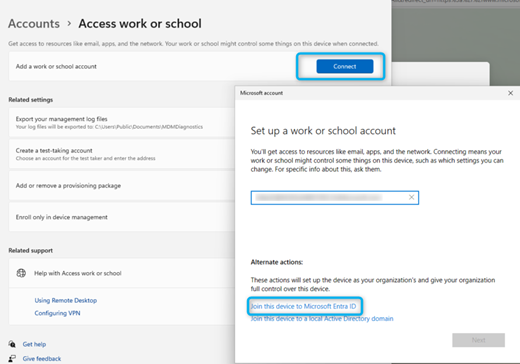
After rebooting we could log in with the user Enter ID. The first login will use a new profile but that’s what we want to happen. The first typical Windows 11 user configuration will be performed: the screen with the Hi greeting, and then the PIN generation will be requested.
Pairing the old profile to the user ENTRA ID
To allow the Login ID user to use the Active Directory user profile, the ENTRA ID user must be granted access to the Active Directory user profile path.
$acl = Get-ACL -Path $oldprofile
$accessrule = $acl.access | ? { $_.identityreference -eq $ADSid}
$newacessrule = New-Object System.Security.AccessControl.FileSystemAccessRule $sid, $accessrule.FileSystemRights, $accessrule.InheritanceFlags, $accessrule.PropagationFlags, $accessrule.AccessControlType
$acl.addaccessrule($newacessrule)
$acl.SetOwner($sid)
Set-ACL -ACLObject $ACL -Path $OldProfile
$Acl = Get-ACL -Path $oldprofile\appdata
$acl.addaccessrule($newacessrule)
$acl.SetOwner($sid)
Set-ACL -ACLObject $ACL -Path $OldProfile\appdata
Next, the path of the Active Directory user profile must be configured as the path of the user profile Enter ID.
Set-ItemProperty -Path "HKLM:\SOFTWARE\WOW6432Node\Microsoft\Windows NT\CurrentVersion\ProfileList\$AzureSID" -Name "ProfileImagePath" -Value "$($OldProfile)" -Type ExpandStringThe last step is to copy the ntuser.dat file created with the first logon of the user ENTRA ID from the path of this to the path of the Active Directory user profile
Rename-item -Path $oldprofile\ntuser.dat -NewName ntuser.dat.old
Copy-Item -Path $newprofile\ntuser.dat -Destination $oldprofile\ntuser.dat
The next time you log on, the ENTRA ID user will use the Active Directory user’s profile.
 welcome on ninjasta.it